> For the complete documentation index, see [llms.txt](https://docs.toomuchmedia.com/llms.txt). Markdown versions of documentation pages are available by appending `.md` to page URLs; this page is available as [Markdown](https://docs.toomuchmedia.com/nats-admin/reporting/common-questions/how-to-customize-an-admin-report.md).
# How to Customize an Admin Report
*Article Topics:* [*Reports*](/getting-started/common-topics/reports.md)
You can save your current search filters, date range, data breakdown, and even your default **Focus** into a new custom report for quick access in the future.
You can also save as many reports as you like. For example:
* Create a Profit and Loss report for a specific Affiliate Group, broken down by affiliates, for the last 90 days, using a focus on specific data about their sales.
* Create a Profit and Loss report for a specific Site and a specific Biller, using a focus with specific data about negative transaction types.
## Saving a Custom Report
Navigate to the report you may want to save. For example, the Profit and Loss report.
* Change your search filter, breakdown, etc., to what you would like to include in your report.
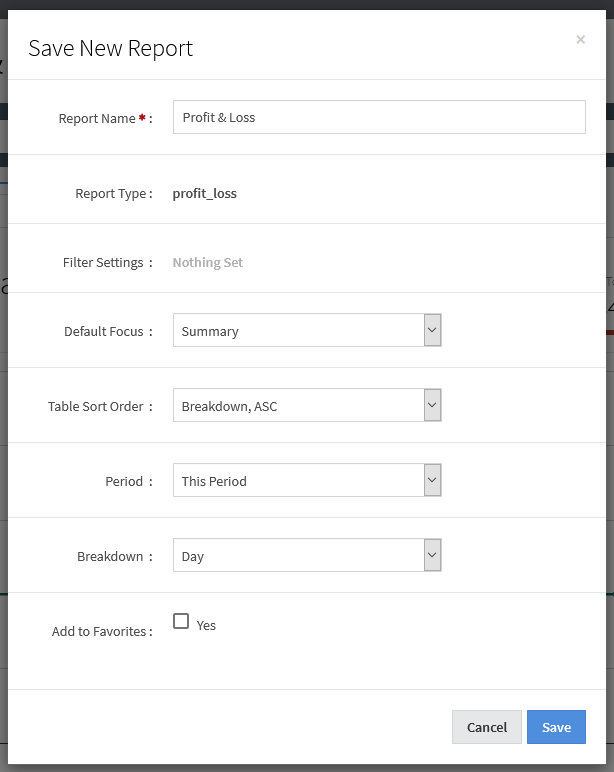
* Click the Save Report button at the top right of the page. A modal window will appear:
Once saved, the new report will be added to your report navigation list. And if you marked your new report as a Favorite, you will see a quick link to the news report at the top of the report navigation list.
### Updating a Custom Report
You will be able to use your custom report just like any other report in your system. You can:
* Change the filters
* Update the date range
* Switch to a new focus
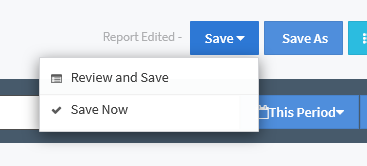
If you change a setting when on a custom report, you may see a change to the buttons on the top right side of your report page. For example:
This will let you know of a change to the report and allow easy access to review the changes, save the changes without review, or save your report as something new.
## Related Articles
{% content-ref url="/pages/0YDsNoUc3OXQ2hy323He" %}
[Reporting](/nats-admin/reporting.md)
{% endcontent-ref %}