# Customizing the Approval URL Template for Automatic login
*Article Topics:* [*Members*](https://docs.toomuchmedia.com/getting-started/common-topics/members)*,* [*Sites*](https://docs.toomuchmedia.com/getting-started/common-topics/sites)*,* [*Templates*](https://docs.toomuchmedia.com/getting-started/common-topics/templates)
## Customizing the Approval URL Template
If you need additional control over the approval page's appearance and behavior, you can modify it to accommodate the automatic login process.
1. Navigate to the **Templates** tab of the currently selected tour.
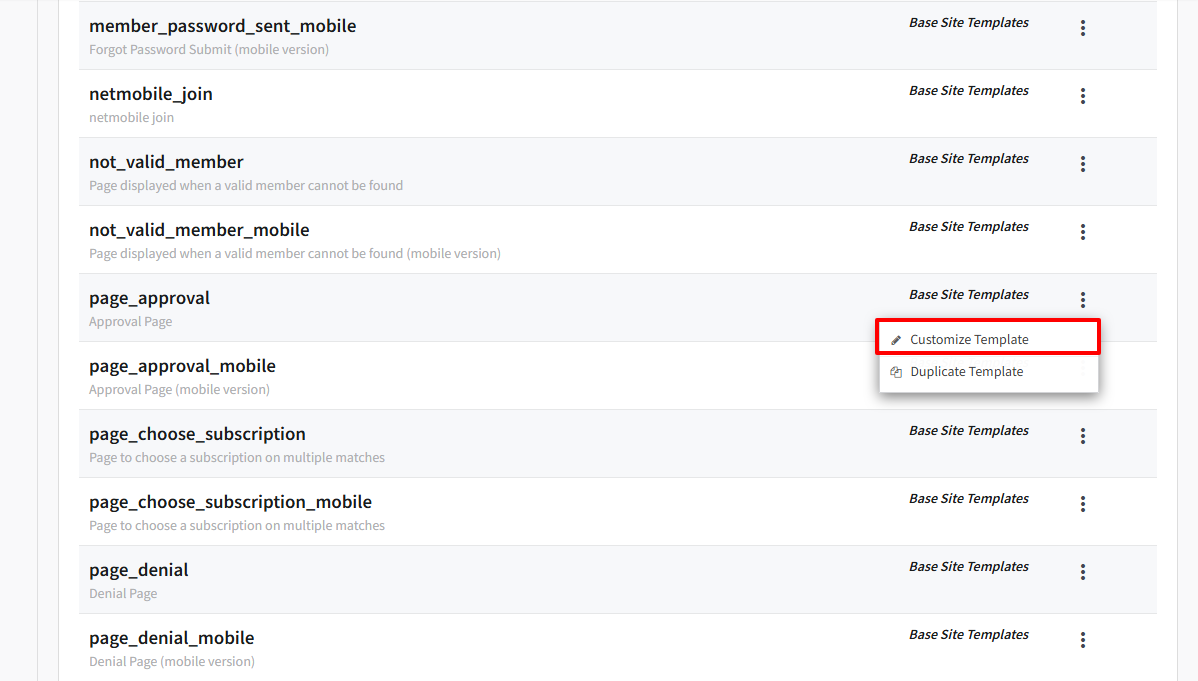
2. Find the **page\_approval** template, click the vertical ellipses to the right, then click **Customize Template**.
The default **page\_approval** template is minimal and outputs:
* A confirmation message
* The member username
* Conditional Gigdat receipt information
You can implement your CMS Tour and Member Area design and include a url to your Members Area.
```
```
Learn more about customizing templates in our [Templates](https://docs.toomuchmedia.com/nats-admin/sites/site-templates) article.
## Important Considerations
When customizing the page\_approval template:
* Do not remove required Smarty variables such as **$member.username**
* Preserve conditional billing logic
* Ensure the login link points to the correct CMS Member Area